
Remote instances
Every mimOE on your network, one click away.
Windows only for now.
One switcher
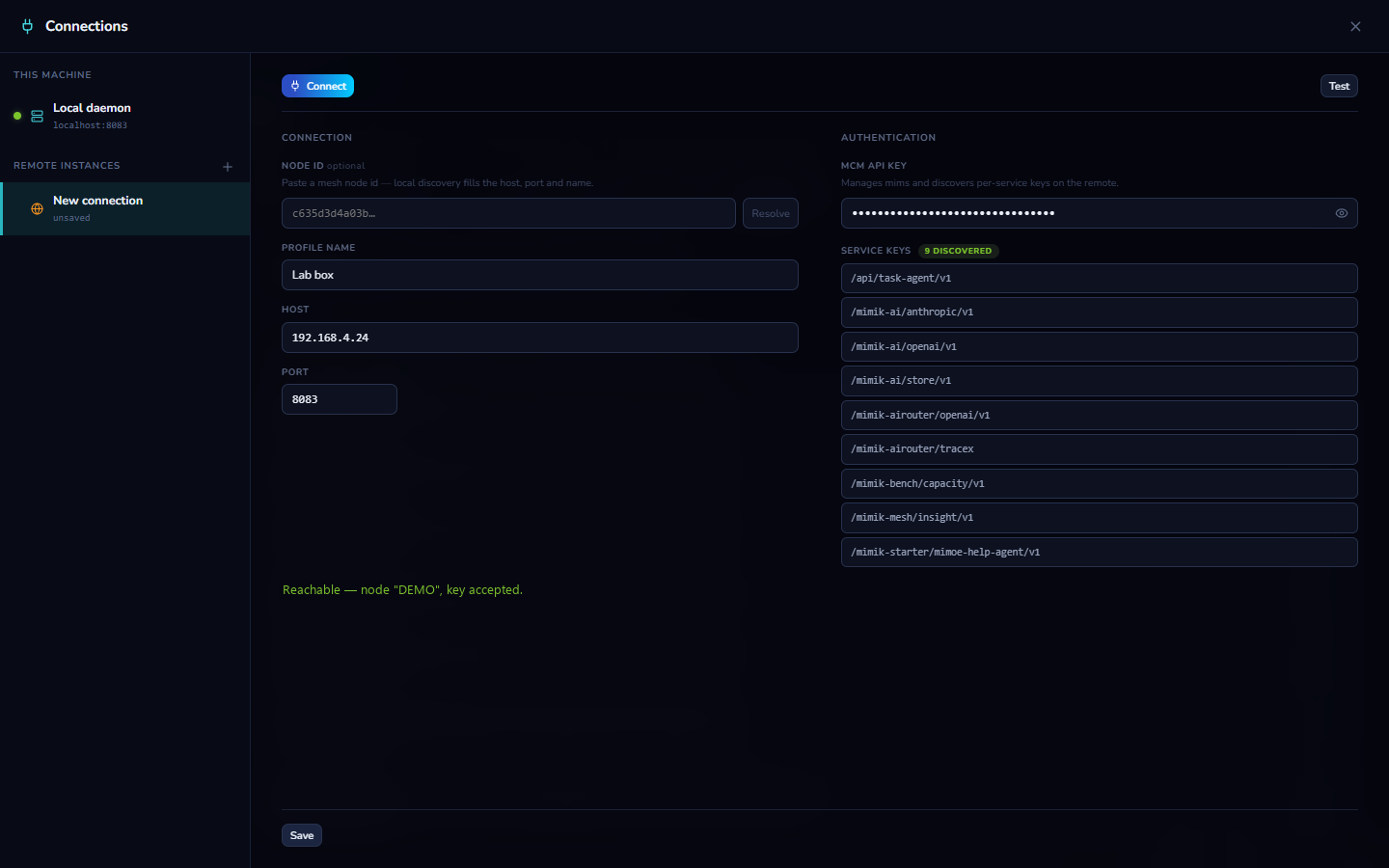
The instance card in the sidebar is the whole UX: click it to jump between This machine and your saved instances, or open Manage Connections, a full-screen manager with profiles, verification, and discovered service keys.
Node ID, not IP
Every mimOE has a stable node ID. Type it and Studio resolves the current address and device name from mesh discovery, and pins that identity to the profile so you always reach the machine you meant.
Self-healing addresses
DHCP handed the workstation a new IP overnight? The connect probe notices the mismatch, re-resolves the node on the mesh, follows it, and saves the fresh address. You just see “connected.”
Obviously remote
While you're driving another machine, the app wears mimik orange: the instance card, the accents, the status bar. You can't mistake whose models you're managing.
Keys discovered
Authenticate with the instance's management key and Studio harvests the per-service API keys automatically, so models, routing, and the Playground work on the remote immediately.
How it works
- 1
Open Manage Connections
Click the instance card in the sidebar (Studio always starts connected to this machine) and open the full-screen connection manager.
- 2
Add by node ID
Paste the remote instance's node ID and hit Resolve: mesh discovery fills in the current address and device name, and pins that identity to the profile. Add its management key.
- 3
Test
The probe reaches the node, verifies it's the machine you pinned, checks the key, and harvests the per-service API keys. You see “Reachable, key accepted” before you ever switch.
- 4
Connect, safely
Switching commits only on success: if the target is dead, you stay where you were. If its IP changed, Studio re-resolves the node on the mesh, follows it, and saves the fresh address.
- 5
Drive it, in orange
While remote, the app wears mimik orange so there's never doubt about whose models and agents you're looking at. One click returns you to this machine.